AI Workspace
The AI Workspace section surfaces the skill and playbook library directly inside the plugin — browse, search, and launch workflows without leaving Obsidian.
Playbooks
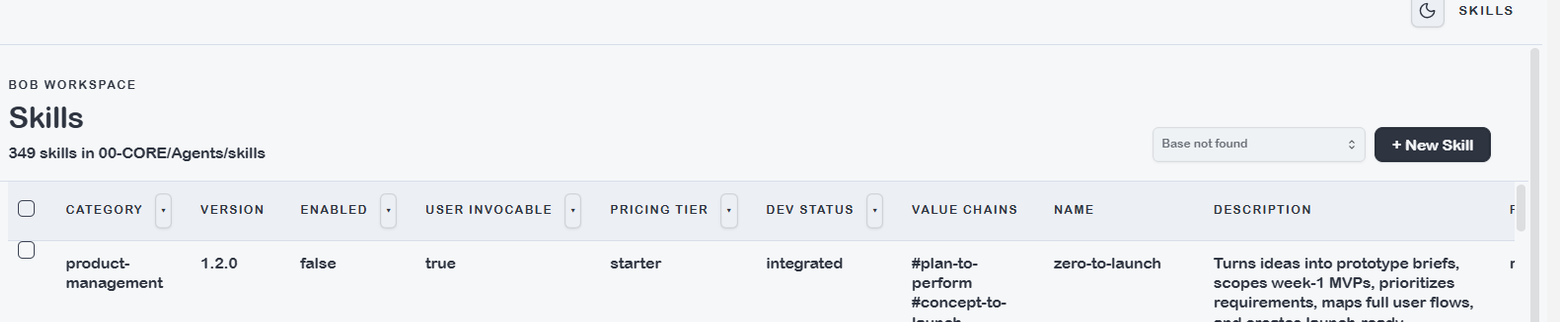
Playbooks lists all type: playbook notes from the vault. Each entry shows the playbook name, trigger phrase, estimated duration, total steps, and status. Clicking a playbook opens a detail view with the full trigger, outcome, and step-by-step workflow.
Key fields in a playbook: - Trigger — the phrase or condition that starts this playbook - Outcome — what you get when the playbook completes - Total steps — number of discrete skill invocations in the workflow - Value chain — which business value chain this playbook serves
Use the search bar to filter playbooks by name or trigger. The status filter shows only active playbooks by default — set to All to include drafts and archived playbooks.
To launch a playbook: copy the trigger phrase and paste it into the Claude Code chat panel. The assistant matches the trigger to the playbook and begins execution.
Skills
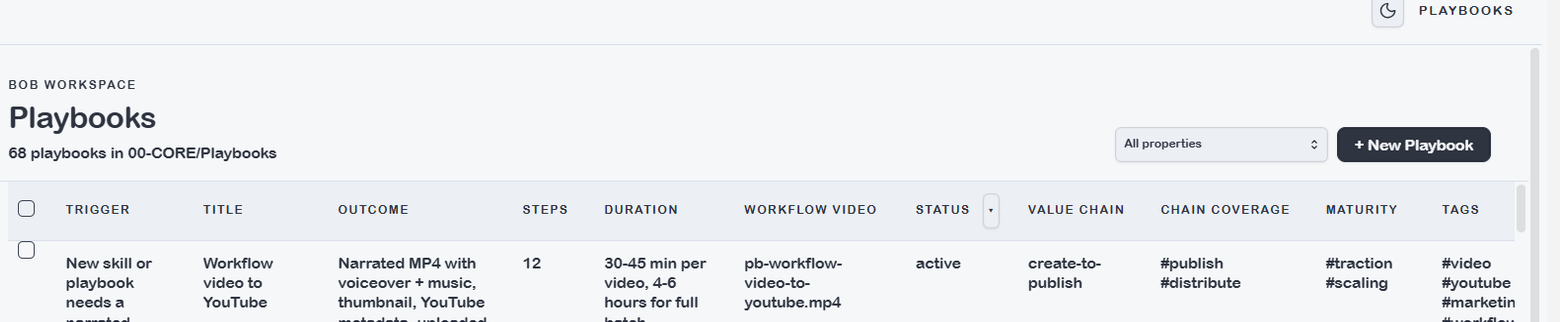
Skills lists all type: skill notes from the vault. Each entry shows the skill name, category, version, development status, and which value chains it serves.
Key fields visible in the list:
- Category — the functional area (e.g. finance, crm, obsidian, content)
- Dev status — draft / integrated / certified
- Pricing tier — which product pack includes this skill
- Value chains — which end-to-end business journeys this skill supports
- Requires — any prerequisites (none / config / api-key / mcp / install)
Use the search bar to find skills by name or category. The status filter defaults to enabled skills only.
To use a skill: open the Claude Code chat and type the skill's trigger phrase or /skill-name. Skills with disable-model-invocation: true are infrastructure tools — they run via scripts rather than direct AI invocation.