BOB Workspace — User Guide
BOB Workspace is the operating interface of the BOB system inside Obsidian. It brings every business function — planning, CRM, client delivery, finance, procurement, reporting, and AI workflows — into a single plugin panel with a left-nav and tabbed sub-views. All data stays in plain markdown files with YAML frontmatter; the plugin is purely a lens over your vault.
Navigation
| Section | What it covers |
|---|---|
| Planner | Daily planning — inbox, today, calendar, tasks, projects |
| CRM | Pipeline, contacts, clients, leads, campaigns, activities |
| PRM — Partner Relationships | Partner overview, registrations, commissions, certifications |
| Client Work | Client workspace: meetings, comms, deliverables, feedback, surveys, testimonials, decisions |
| Finance | Invoicing, general ledger, finance setup, tax |
| Suppliers & Procurement | Suppliers, supplier invoices, purchase requisitions, purchase orders |
| Reports | Productivity, pipeline, sales, partner, and activity reports |
| AI Workspace | Playbooks browser and skills library |
How the Plugin Reads Your Data
BOB Workspace resolves entity fields and views through four layers, applied in order. Later layers override earlier ones — no code changes required.
Layer 1 — Built-in fallback model
Defined inside main.js. Keeps the plugin functional in an empty vault. Contains default field names for compatibility but should not be relied on for vaults with a configured datamodel.
Layer 2 — Schema layer
YAML files in {vault.schemas.source}. The primary source for field keys, labels, types, enums, and required flags. When schemas are active, create forms, entity tables, and workbook export/import all use your vault's field names.
Layer 3 — Base layer
.base files in {vault.bases}. Define how entities are displayed: visible columns, filters, sort order, groupBy, and named views. The plugin reuses these views rather than duplicating logic internally.
Layer 4 — Custom entity overrides (entities.json)
Located at .obsidian/plugins/bob-workspace/entities.json. Use this to add new entity types, override built-in fields, change folder/type filters, or add local enum values — without touching schemas. Managed from Settings → BOB Workspace → Custom entities or reloaded with the Reload entities.json command.
The Bases Dropdown
Most entity list screens show a dropdown in the top-right that lets you switch between named views defined in the corresponding .base file.
Each Base can define multiple named views with their own filters, column order, sort, and groupBy. Examples:
- Contacts Base might have views: All Contacts, Business Contacts, By Company
- Pipeline Base might have views: Kanban, Active Deals, Won This Quarter
To change what appears in the dropdown:
1. Open the relevant .base file in {vault.bases}
2. Add or edit a views: entry with a name:, optional filters:, order:, and groupBy:
3. Save — the dropdown updates immediately without restarting Obsidian
What You Can Customise Without Touching Code
| What | How |
|---|---|
| Entity field names, labels, enums | Edit {vault.schemas.source}/{entity}.yaml |
| Column visibility and order on list screens | Edit the views: block in {vault.bases}/{Entity}.base |
| Filters and grouping on list screens | Edit filters: / groupBy: in the Base view |
| Add a new entity type | Create schema YAML + Base file + entities.json entry |
| Override a built-in entity's folder or fields | Add an entry in entities.json |
| Team view categories | Settings → BOB Workspace → Team person categories |
| Task mode for Productivity | Settings → BOB Workspace → Task mode (checkbox / TaskNotes / hybrid) |
| TaskNotes folders | Settings → BOB Workspace — active folder + archive folder |
| Which modules appear in the nav | Settings → BOB Workspace → Modules — toggle Planner / CRM / PRM |
| Currency | Settings → BOB Workspace → Currency |
| Default tab on open | Settings → BOB Workspace → App → Default tab |
| Week start day | Settings → BOB Workspace → App → Week starts on |
| Daily note folder and headings | Settings → BOB Workspace → App |
Template files are automatically excluded — any file inside a path segment named Templates or templates is ignored by all entity lists and dashboards.
Shared UI Patterns
These UI patterns appear consistently across entity list screens throughout the plugin.
+ New [Entity] button — opens a two-column capture modal. Fields are type-aware: date pickers, dropdowns for enum fields, required fields marked. Press Enter to save, Esc to cancel.
Import CSV — available on list views. Maps spreadsheet columns to entity fields by name (with synonyms). Override mappings before import. Each row becomes one .md file.
Bases view dropdown — top-right of entity list screens. Switches between named views defined in the entity's .base file. Adding a new view to the Base file adds it to this dropdown instantly.
Secondary tabs — screens for Campaigns, Partners, Client Work, General Ledger, Finance Setup, Tax, and Suppliers each have a tab strip. The first tab is always an overview/dashboard; subsequent tabs are entity sub-lists.
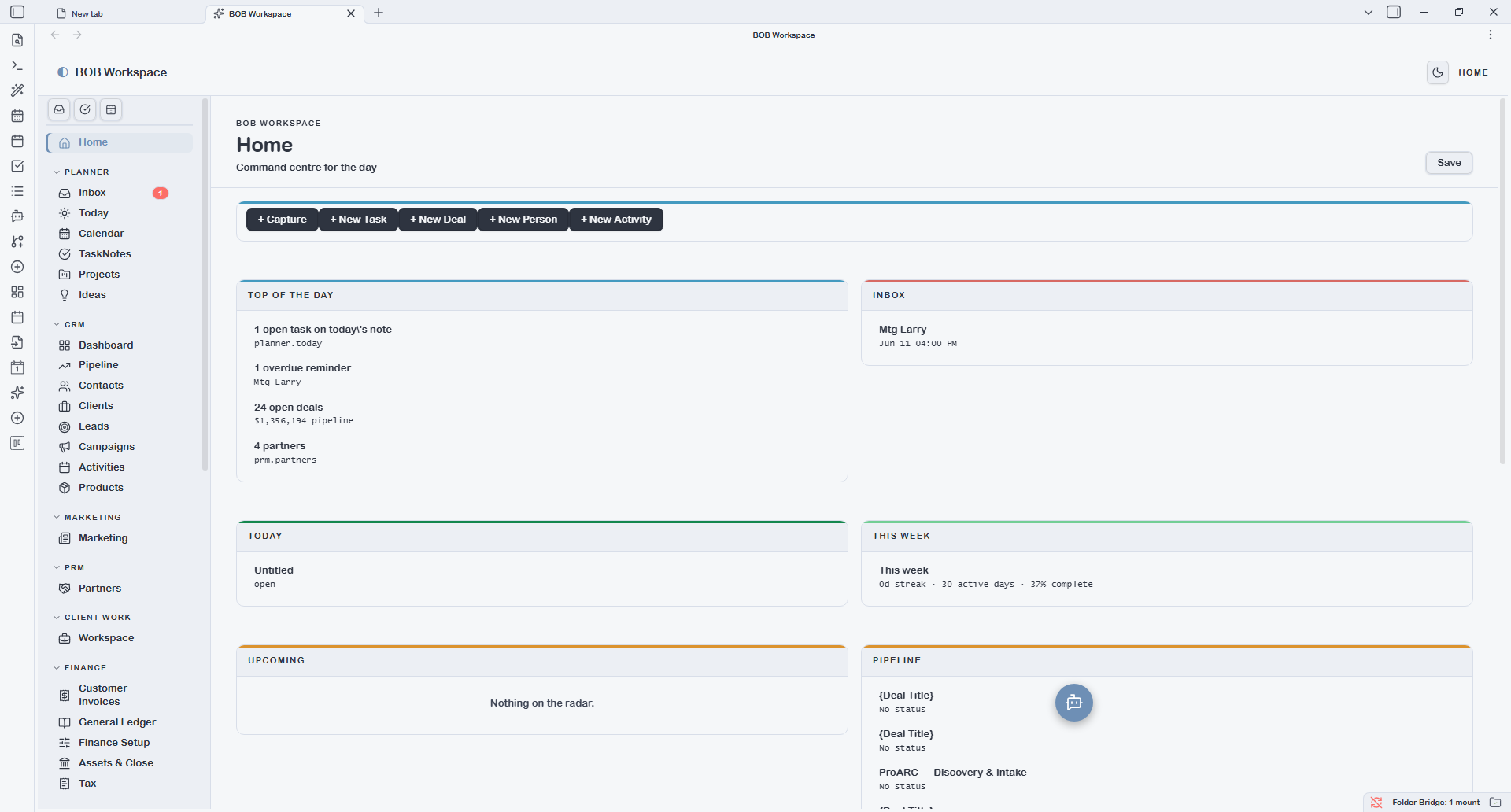
Home
The Home screen is your command centre. It opens by default when you launch the plugin (configurable in Settings). It shows a two-column dashboard:
Left column: today's tasks (tickable inline), this week's progress, upcoming deadlines.
Right column: top active projects with milestone progress, pipeline summary by stage, partners due for follow-up, recent activity feed.
Home is read-only — tick tasks and they write back to the source daily note or TaskNote. Everything else opens its source note on click.
Team
Team is a filtered People view — not a separate entity type. It shows type: person records filtered to the categories configured under Settings → BOB Workspace → Team person categories. The default categories are employee, freelancer, and contractor.
To add a new team member, use + New Person and set person_category to one of the configured categories. To show additional person categories in the Team view (e.g. advisor), add it to the setting — no schema or code change needed.
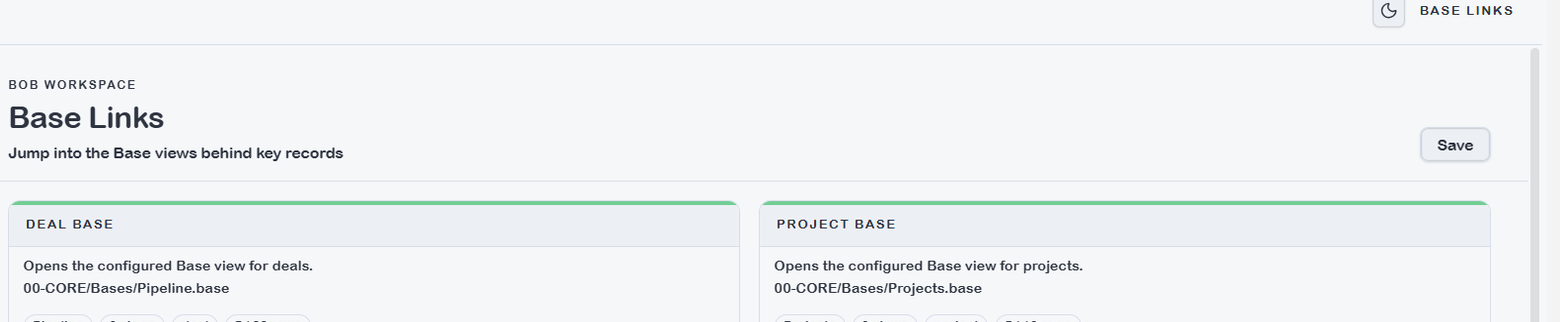
Base Links
Base Links is a shortcut panel that surfaces direct links to every .base file in {vault.bases}. Clicking a link opens the Base in Obsidian's native Base viewer.
Use Base Links when you want to: - Browse an entity list with inline editing (native Base views support inline field editing; plugin grid rows open the source note instead) - Share a specific entity view with a colleague who prefers the native editor - Quickly navigate to a Base file to add or edit named views
Settings
Settings controls all plugin-level configuration. Changes take effect immediately without restarting Obsidian.
Key sections:
- Modules — toggle Planner, CRM, PRM on/off. Disabled modules disappear from the nav and from dependent Report screens.
- App — open on startup, default tab, week start day, daily note folder, task/journal heading names.
- Task mode — how Productivity and TaskNotes reads tasks: Checkbox only (daily note checkboxes), TaskNotes only, or Hybrid.
- Team person categories — which
person_categoryvalues appear in the Team view. - Custom entities — load or reload
entities.jsonfor entity overrides. - Currency — display currency for deal values and invoice amounts.
- Reminders — enable desktop notifications, clear completed reminders.